Flowchart Best Practices for Software Teams
A decade of flowchart mistakes, distilled. Covers the six symbols that actually matter, the 15-shape rule, layout discipline, and a worked checkout-flow example rewritten from broken to clean.

The first flowchart I shipped to a production team was a disaster. It had twenty-three decision diamonds, arrows crossing in six places, and a loop that every reviewer interpreted differently. By the time the backend engineer had implemented it and QA had written tests against it, we had three different understandings of the same feature. We spent the next sprint reconciling them.
That experience is why I care about flowchart craft. A flowchart isn't decoration for a spec doc — it's a contract between the people reading it. If two readers can walk away with different mental models, the diagram has failed at its one job. This guide distills the patterns I've seen work across a decade of shipping software, and the mistakes I keep seeing teams repeat.
Why flowcharts still matter in 2026
We have sequence diagrams, state machines, BPMN, user story maps, and a dozen other notations designed for specific problems. So why do flowcharts keep showing up in design docs, RFCs, and incident post-mortems?
Because nobody needs to be trained to read one. Drop a state machine in front of a product manager and you'll spend ten minutes explaining transitions. Drop a flowchart in front of the same PM and they're asking clarifying questions in thirty seconds. That universality is the whole value. The notation is older than digital computing itself — ANSI standardized it in 1970, and the core symbols haven't meaningfully changed since — which means your intern and your principal engineer both already know how to read one.
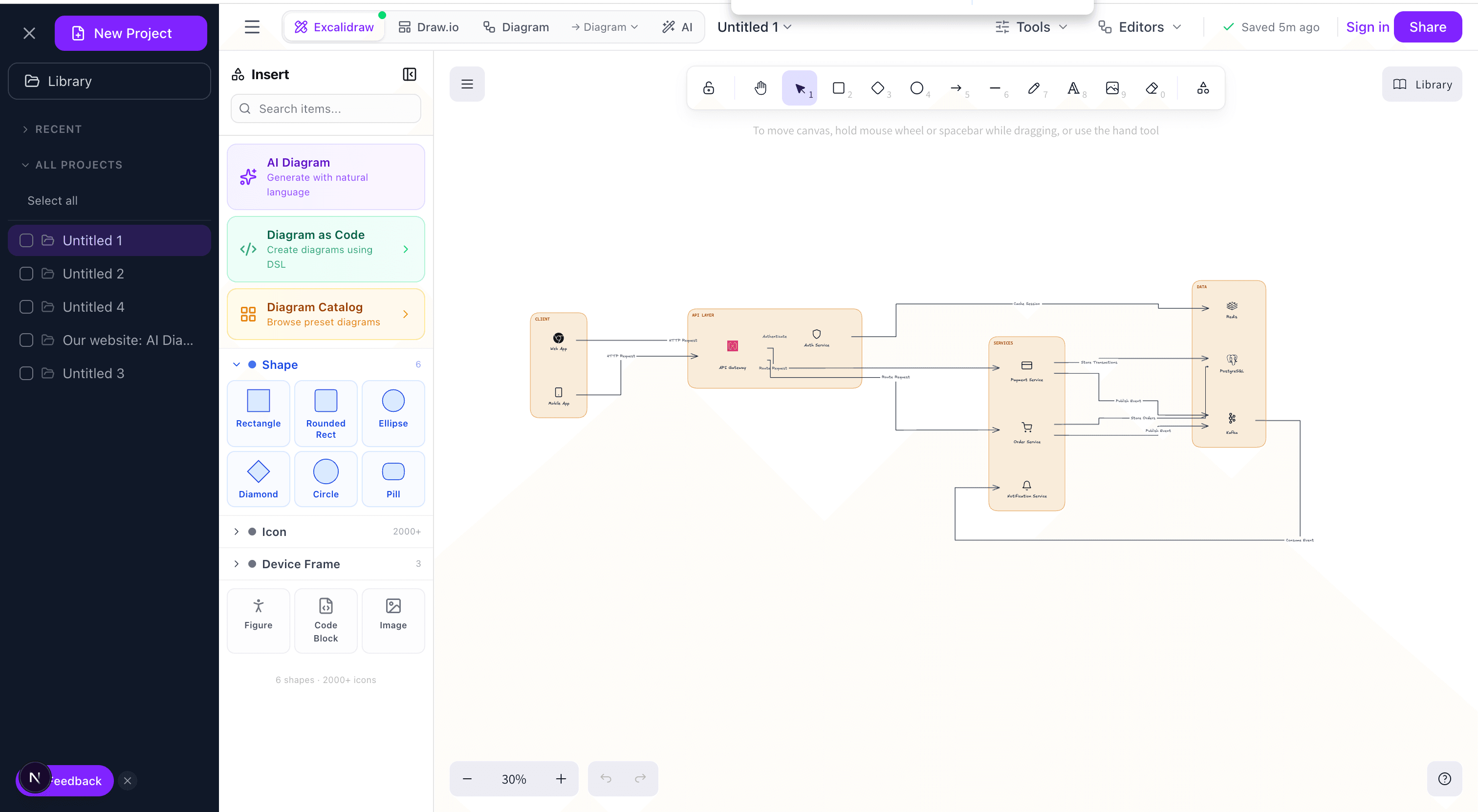
For a deeper comparison of when to reach for other diagram types — sequence, C4, ER diagrams — see our guide to creating architecture diagrams. Flowcharts handle behavior over time for a single actor; they are not the right tool for concurrent systems or data models.
The six symbols you actually need
The ISO/ANSI flowchart standard defines dozens of symbols. In practice, I've never needed more than six. Most readers cannot distinguish a “preparation” hexagon from a “manual input” parallelogram-with-a-tilt, and trying to enforce the distinction just adds noise.
- Oval (Terminator) — Start and end. Rule: exactly one start, at least one end. A flowchart without a labeled start is like a function without a name; readers have to guess where to begin.
- Rectangle (Process) — An action or computation. Imperative verb + noun: “Send welcome email”, not “Welcome email handling”.
- Diamond (Decision) — A branch. The text inside must be a yes/no question. “Payment method?” is wrong; “Payment is credit card?” is right. If your decision has more than two outcomes, you usually have two nested decisions hiding in one.
- Parallelogram (I/O) — Data crossing the system boundary. User input, API response, file read. I use this sparingly — if everything is I/O, nothing is.
- Arrow (Flow) — Direction of control. Single arrowhead, never double. If you need to indicate a two-way interaction, you have a sequence diagram, not a flowchart.
- Rounded rectangle with double sides (Subprocess) — A named reference to another flowchart. This is the most under-used symbol on the list, and also the most important, as you'll see in the next section.
The 15-shape rule
If your flowchart has more than fifteen shapes, it is already too complex to be useful. This is the single most important rule in this article, and the one most often violated.
The reason is cognitive, not aesthetic. Working memory holds roughly 7±2 items. A flowchart reader is tracking three things at once: the current node, the path they took to get there, and the unexplored branches. Past fifteen shapes, the third category exceeds working memory, and the reader starts skipping branches rather than tracing them. You've now shipped a diagram people pretend to read.
The fix is the subprocess symbol. Every time a section of your flowchart has internal branching logic that isn't central to the main flow, extract it. “Validate payment” might be a subprocess with its own ten-shape flowchart covering fraud checks, 3DS, retry logic. The main flow just says validate payment → success? → ... and keeps moving.
Layout: one direction, then commit
The two viable directions are top-to-bottom and left-to-right. Pick one per diagram and do not mix. Mixing directions is the most common failure mode I see in team flowcharts — usually someone added a late branch horizontally to avoid redoing the layout, and now the diagram reads like a maze.
Top-to-bottom is the default. It reads like code. The happy path runs down the center spine; error branches exit to the right and terminate. This is what I use for 80% of diagrams.
Left-to-right is worth the switch when you have clear pipeline stages with fan-out inside each stage, or when you need to fit the diagram into a landscape slide. Don't use it just because “the diagram is wide” — rotate your thinking instead.
Whichever you pick, arrows always point in the chosen direction. A “No” branch that loops back up to a previous step is fine; a “No” branch that points diagonally across the diagram is not.
Seven rules that survive contact with real teams
1. Draw the happy path first, then add failure
Start with the successful case, end to end, no error handling, no edge cases. This is your spine. Then attach failures as branches exiting the spine. Every branch must either rejoin the spine (retry) or terminate (failure state). A branch that wanders off into nowhere is a bug in the diagram, which usually means a bug in the spec.
2. One verb per rectangle
“Validate input and save to database” is two boxes. Splitting them isn't pedantry — it's where bugs hide. If validation passes and save fails, what's the behavior? If the two steps are a single box, the diagram can't tell you. If they're two boxes with a decision between them, the diagram forces you to think about it.
3. Label both sides of every decision
Every arrow leaving a diamond gets a label: Yes/No, True/False, Valid/Invalid, Cache hit/Cache miss. Unlabeled decision arrows are the #1 source of ambiguity in flowcharts I review. The reader has to guess which path is the positive case, and half of them will guess wrong.
4. Every loop must have an exit
Retry loops, polling loops, “try next provider” loops — all need a visible maximum-attempts exit. If the diagram shows an infinite loop, the implementation will have one too. I've seen this cause real outages: a payment retry loop that ran forever because the spec was drawn without a bounded exit.
5. Minimize arrow crossings, fix with subprocesses
Crossing arrows are a smell, not a sin. If you have one crossing, try reordering shapes or flipping a branch from left to right. If you have more than two crossings, stop and extract a subprocess. The crossings are telling you the diagram has two concerns mixed together.
This is one area where automatic layout tools earn their keep. Our diagram editor uses the ELK layered layout algorithm, which minimizes crossings mathematically. I've found that if ELK can't produce a crossing-free layout, the flowchart genuinely has mixed concerns and needs to be decomposed.
6. Color encodes meaning, or it encodes nothing
If you use color, it must mean something consistent across the diagram. My convention: green terminators for success, red terminators for failure, blue rectangles for external system calls, default gray for internal logic. If color doesn't carry information, drop it — a black-and-white flowchart that's well laid out beats a rainbow one that isn't.
7. Version the flowchart next to the code
A flowchart that lives in a Confluence page nobody updates is worse than no flowchart, because it actively misleads. If the flow matters, check it into the same repo as the code. Text-based diagram formats — Mermaid, the Eraser-style DSL our AI diagram generator produces — make this trivial. The diagram diffs alongside the code change that required it.
A worked example: the checkout flow
Let me walk through an example end-to-end, because abstract rules are easier to nod along to than to apply. Here's the first draft of a checkout flowchart a team might produce:
This violates almost every rule above. “Validate shipping and payment and inventory” is three actions glued together. “Payment OK?” is unlabeled. The happy path is mixed with three fanout actions at the end. There's no failure branch anywhere.
The fixed version:
Notice what changed: three subprocesses extracted (payment processing, customer notification, inventory validation lives inline but could go the other way), every decision labeled, every loop bounded, a clean happy-path spine. The diagram fits in twelve shapes. A reviewer can trace any path in under thirty seconds.
Common mistakes, ranked by frequency
- Compound actions in a single box. This is the most common issue I see. Split aggressively — you can always group visually later.
- Unlabeled decision branches. Second most common. Fix: enforce it in code review the same way you enforce function docstrings.
- Dead-end branches. A “No” path that just stops. Either it terminates (draw the terminator) or it rejoins (draw the rejoin).
- Unbounded loops. Infinite retries in the diagram become infinite retries in code. Always show the max-attempts exit.
- Mixed layout directions. Usually means the flowchart was edited, not designed. When a diagram gets messy enough that direction breaks down, it's time to redraw it.
- Vague labels. “Process data” means nothing. “Parse Stripe webhook payload” means something. If you can't name the action specifically, you haven't designed it yet.
From flowchart to code
A well-drawn flowchart translates almost mechanically to code. Every decision diamond becomes an if/else or a switch. Every process rectangle becomes a function call. Every subprocess becomes a function. Every loop becomes a while with the bounded exit already spelled out. The flowchart is, in effect, a pseudocode draft that non-programmers can review.
This is also why flowcharts pair well with AI-assisted coding. Starting from a flowchart, you can prompt an LLM with “implement this flow in TypeScript” and get a reasonable first draft, because the structure is already explicit. We explore this pattern in depth in our article on AI-powered diagramming, including how the reverse direction — code-to-flowchart — can help you audit existing logic.
If you want to skip the drawing step entirely, describe your flow in plain English to our AI diagram generator and it will produce a flowchart applying the rules above — labeled decisions, one verb per box, subprocess extraction for anything over the 15-shape threshold. It's what I use when I need a first draft in under a minute.
The short version
If you remember nothing else: one verb per box, label every decision, cap at fifteen shapes, extract everything else into subprocesses. Those four rules alone will put you ahead of 90% of flowcharts shipped in production specs. The rest is polish.
Try it yourself
Create diagrams instantly with AI Diagram — describe what you need and get a professional diagram in seconds.
Open Diagram EditorBuilder of CalcStack. Writes about software architecture, AI-assisted diagramming, and developer productivity. Follow on awais.calcstack.co.
Related articles